Tunnels
A tunnel carries network traffic through an SSH connection. Use one to reach a database that only listens inside a server’s network, to show a server something running on your laptop, or to browse the web as if you were on the server. Tunnels are saved on a host, in your encrypted vault.
Which kind do you need
Section titled “Which kind do you need”| Kind | In one line | OpenSSH equivalent |
|---|---|---|
| Local | “A port on this computer reaches something the server can reach.” | ssh -L |
| Remote | “A port on the server reaches something this computer can reach.” | ssh -R |
| SOCKS proxy | “Apps on this computer browse through the server.” | ssh -D |
Local: reach Postgres on db-primary as if it ran here
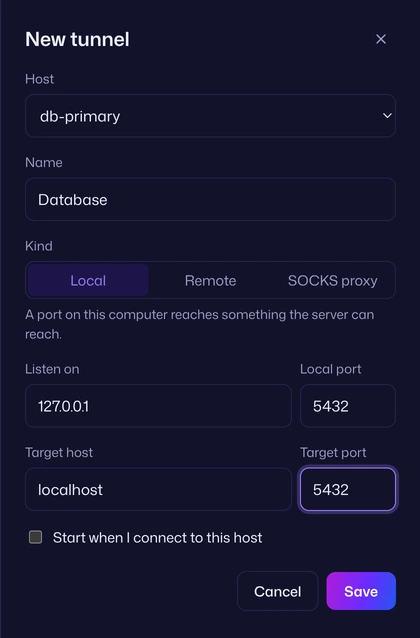
Section titled “Local: reach Postgres on db-primary as if it ran here”Postgres on db-primary only listens on 127.0.0.1:5432, on the server itself. Add a Local tunnel on the db-primary host:
| Field | Value |
|---|---|
| Name | Database |
| Listen on | 127.0.0.1, port 5432 |
| Target host | localhost (on the server) |
| Target port | 5432 |
Start it, and psql -h 127.0.0.1 -p 5432 on your computer talks to the database on db-primary. If Postgres runs on a different machine that db-primary can reach, put that machine’s address in Target host instead, such as 10.0.4.20.
Remote: show the server something running on your laptop
Section titled “Remote: show the server something running on your laptop”You’re running a dev server on your laptop at localhost:3000, and want web-01 to be able to reach it. Add a Remote tunnel on web-01:
| Field | Value |
|---|---|
| Name | Dev server |
| Listen on (on the server) | 127.0.0.1, port 9000 |
| Target host | localhost |
| Target port | 3000 |
Start it, and on web-01, curl http://127.0.0.1:9000 reaches your laptop’s port 3000.
SOCKS: browse through the server
Section titled “SOCKS: browse through the server”Add a SOCKS proxy tunnel on web-01, listening on 127.0.0.1 port 1080. Start it, then set your browser (or any app that supports SOCKS5) to use the proxy 127.0.0.1:1080. Their traffic now goes out from web-01, so internal sites the server can reach open in your browser.
In Firefox: open Settings, then Network Settings, choose “Manual proxy configuration”, set SOCKS Host to 127.0.0.1 and Port to 1080, pick SOCKS v5, and tick “Proxy DNS when using SOCKS v5” so internal names resolve on the server. On the command line: curl --socks5-hostname 127.0.0.1:1080 http://intranet.internal.
Add a tunnel
Section titled “Add a tunnel”From the Tunnels page (Tunnels in the left rail): press New tunnel. It needs at least one saved host: with none, the page says “Add a host first: tunnels forward ports through a server you connect to.”
From a host: open it on the Hosts page, and press Add tunnel in its Tunnels section.
Every field:
| Field | What it’s for |
|---|---|
| Host | The saved host the tunnel goes through. |
| Name | What the tunnel is called in lists and the Command Center. |
| Kind | Local, Remote or SOCKS proxy. |
| Listen on | The address and port that accept connections: on this computer for Local and SOCKS, on the server for Remote. |
| Target host, Target port | Where connections go. For Local, as seen from the server (localhost is the server). For Remote, as seen from this computer (localhost is your computer). SOCKS has no target: apps say where they want to go. |
| Start when I connect to this host | Starts the tunnel by itself. See Start with the connection. |
Press Save.
The rules:
- Ports are 0 to 65535. For Local and SOCKS tunnels, port
0means “any free port”: “Vaulterm picks a free port each time it starts, and shows it here.” - A Remote tunnel needs a real port on the server: “A remote tunnel needs a port on the server.”
- Listen on defaults to
127.0.0.1, so only this computer (or, for Remote, only the server) can use the tunnel.
Start and stop
Section titled “Start and stop”On the Tunnels page, tunnels are grouped by host. Each row shows its route, such as 127.0.0.1:5432 → localhost:5432, SOCKS on 127.0.0.1:1080 or server 127.0.0.1:9000 → localhost:3000, and its state:
| State | Meaning |
|---|---|
| Stopped | Not running. |
| Starting… | Opening the listener. |
| Running · 2 connections | Working, with how many connections are using it now, and the traffic in and out. |
| Waiting for the connection… | The SSH connection dropped. The tunnel carries on once Vaulterm reconnects. |
Press the start button on a row to start it, and the stop button to stop it. Stop closes the listening port and every connection going through it.
The copy button on a running Local or SOCKS tunnel copies its address, such as 127.0.0.1:5432, to paste into your database client or browser settings.
From the Command Center: type the tunnel’s name. The result reads “Start tunnel Database on db-primary” (or “Stop…” when it’s running). Enter starts or stops it; Tab offers Copy local address and Go to Tunnels.
Tunnels without a terminal
Section titled “Tunnels without a terminal”A tunnel runs over the host’s SSH connection. If you have a terminal open to that host, it uses that terminal’s connection. If you don’t, Vaulterm opens a connection of its own for the tunnel, with no terminal, and the row says “own connection”.
That connection signs in the host’s usual way, so it needs a key, a saved password or your agent: nobody’s there to answer a prompt. If the host needs you to type something, the tunnel stops with “This host needs you to sign in. Connect to it in a terminal first, then start the tunnel.” Connect in a terminal, then start it again.
If the connection ends for good, the tunnel stops with “The connection to this host ended. Start the tunnel to connect again.”
A tunnel can move between connections without closing its port: open a terminal to the host while it’s running on its own connection, close it again, and the tunnel keeps going.
Start with the connection
Section titled “Start with the connection”Tick Start when I connect to this host and the tunnel starts when a terminal to that host connects. It starts once each time Vaulterm runs: opening a second terminal to the same host doesn’t start it again, and if you stop it, it stays stopped until you start it yourself or restart Vaulterm.
Share a tunnel on your network
Section titled “Share a tunnel on your network”By default a tunnel only accepts connections from this computer (or, for a Remote tunnel, from the server itself). To let other devices use it, set Listen on to an address other devices can reach, such as 0.0.0.0 or this computer’s LAN address, and tick Anyone on your network can use this tunnel. Without the tick, Vaulterm says “Tick the box to let other devices use this tunnel, or listen on 127.0.0.1.”
Anyone who can reach that address and port can then use the tunnel, with no password: they reach whatever the tunnel reaches, as you. Only do this on a network you trust, and stop the tunnel when you’re done.
Saving a tunnel that listens on a public address asks first, with Cancel focused.
For a Remote tunnel on a public address, the server must also allow it: OpenSSH’s GatewayPorts setting in /etc/ssh/sshd_config controls whether remote tunnels can listen on anything but 127.0.0.1.
The tray’s Tunnels tab
Section titled “The tray’s Tunnels tab”Press Ctrl+Shift+I (⌥⌘I on a Mac) and open Tunnels to see the focused host’s tunnels beside its terminal, with the same start, stop and copy buttons. With none, it says “No tunnels on web-01 yet. A tunnel reaches a port on the server, or lets the server reach one here.”
For a quick-connect session, the tab says “Save this host to add tunnels to it.”
Edit or delete a tunnel
Section titled “Edit or delete a tunnel”Click the edit button on a tunnel’s row (on the Tunnels page, the tray, or the host’s Tunnels section), change what you need, and press Save. Stop and start a running tunnel for changes to take effect.
To delete it, press Delete in the tunnel’s sheet. Vaulterm asks first, with Cancel focused.
Deleting a host deletes its tunnels too.
Tunnels made for you
Section titled “Tunnels made for you”When a program on a server prints a local address like http://localhost:5173, the pane offers “Forward and open :5173”. It makes a Local tunnel called “Port 5173” on that host, listening on any free port here, starts it and opens your browser. It’s an ordinary tunnel from then on: find it on the Tunnels page. See Open a printed web address.
Good to know
Section titled “Good to know”- If a port is already taken on this computer (say, a local Postgres already uses 5432), the tunnel can’t start and shows why. Pick another port, such as
15432, or port0for any free one. - On Linux, ports below 1024 need root. Use a higher port for Local and SOCKS tunnels.
- Imported
LocalForward,RemoteForwardandDynamicForwardlines aren’t brought in automatically. Add them here by hand; the fields map one to one.