Set up your vault
The first time Vaulterm opens, it creates your vault: one encrypted file on this computer that holds your hosts, keys, passwords and snippets. Setup takes about a minute.
What setup asks for
Section titled “What setup asks for”- Welcome to Vaulterm. It lists what setup asks for. Press Get started.
- What should we call you? Type a name for Home to greet you with under Your name, or leave it empty, and press Continue.
- Got a license key? Paste your key and press Activate, or press Continue without a key. The steps after this one show what your plan includes, so without a key they offer no Pro choices. See Pro opens the pricing page. You can add a key or sign in later in Settings → License.
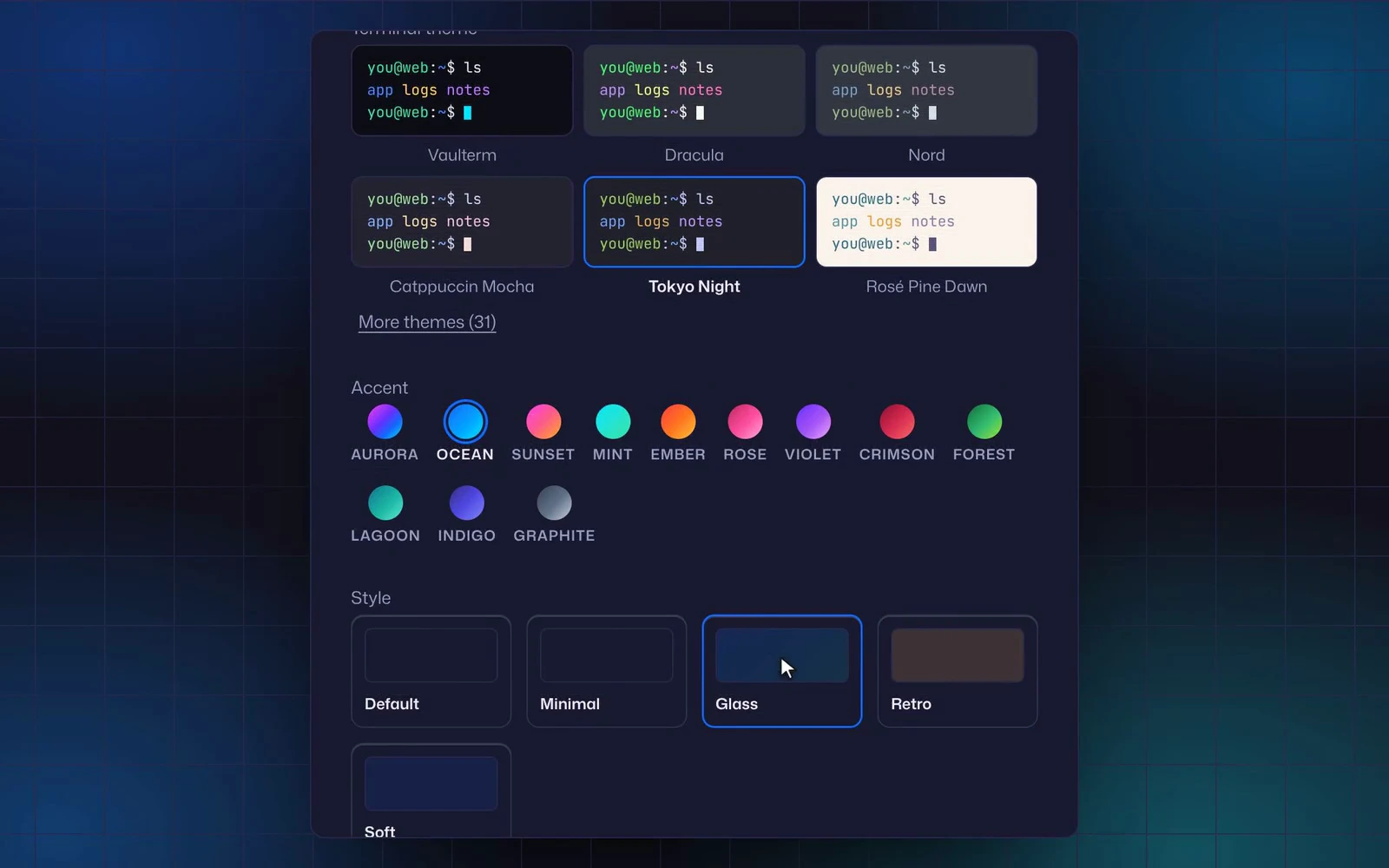
- Make it yours. In v2, which a new install starts on, the first choice is the Interface font: Mona Sans, Inter, Nunito or System font. Then pick a Terminal theme from the previews (press More themes to see all 31, and Fewer themes to fold them away), an Accent, and a Style. Press Continue.
- Sounds. Turn Play sounds on or off and pick a sound pack, Aurora to begin with; the play button lets you hear each one. Press Continue.
- Watch for new devices. Only with Pro. This computer’s networks, each with a switch to have Vaulterm watch it for new SSH servers, and Check every. Press Skip, or Continue once you’ve turned one on. See Watch for new devices.
- Secure your vault. Choose a Master password, type it again under Confirm password, pick when Vaulterm locks under Lock Vaulterm after (15 minutes unless you change it), and press Create vault. See Choose a master password and Auto-lock.
- Save your Recovery Key. Vaulterm shows the key once. Save it, tick I’ve saved my Recovery Key, and press Continue. See Save your Recovery Key.
- Want a quick tour? Press Take the tour, or Not now. See Take the tour.
A row of dots at the top of each step shows how far along you are, and Back goes to the step before. If you close Vaulterm part way, setup opens again on the same step, with your choices kept.
Back takes you to the previous step without losing your choices. If you close Vaulterm part way through, it opens on the same step next time, with what you’d picked still picked. Nothing in steps 1 to 3 goes in the vault: it’s all preferences for this computer, and you can change it later in Settings.
Make it yours shows every accent, style and terminal theme. On Free, Pro’s have a lock, and See what Pro adds says what Pro includes.
The intro
Section titled “The intro”Each time Vaulterm opens and the vault is unlocked, a short intro plays: the mark draws itself to a jingle, the name types in, and Get started fades in. Press it, or Escape, and Vaulterm is there behind it.
To skip it, turn off Play the intro when Vaulterm opens in Settings → Appearance. The jingle alone is Intro jingle in Settings → Sound. The intro doesn’t play when your system asks for reduced motion, or when the tour is about to start.

The new look prompt
Section titled “The new look prompt”Vaulterm 0.1.2 gave every install v2, the new look, and Aurora, the new sound. If you updated from an earlier version, the first time you unlock afterwards, after the intro, a dialog titled “Vaulterm has a new look.” says “Vaulterm opens in v2 now. Keep it, or go back to v1 · Original.”
- Under Look, v2 is chosen. Pick v1 · Original to go back. It takes effect behind the dialog as you click.
- Under Sound, Aurora is chosen, and the pack you had before is beside it, by name (“Keep it, or go back to Classic.”). Press the play button to hear one.
- Use v2 or Use v1 answers the prompt. So do
Escapeand a click outside it, keeping what’s chosen.
It’s asked once, and a new install isn’t asked at all. If you quit with it open, it asks again at the next unlock. Skip it and nothing is lost: Look is in Settings → Appearance, and the sound pack is in Settings → Sound, whenever you want to switch.
Choose a master password
Section titled “Choose a master password”The master password encrypts everything you save in Vaulterm. You type it each time you unlock Vaulterm, so pick something long that you can type without looking at a note. Four or five random words work well: copper lantern mild orbit.
The rules:
- At least 8 characters. Spaces, accents and any other characters count.
- The two fields must match.
- The same password works whatever keyboard or system you type it on. Vaulterm normalises accented letters, so
étyped as one key or aseplus an accent is the same password.
Vaulterm can’t show you your password or reset it without the Recovery Key. There’s no account and no server that knows it.
Save your Recovery Key
Section titled “Save your Recovery Key”After you create the vault, Vaulterm shows a Recovery Key like this:
KX4TQ-M2BZL-7RWPA-NC3HD-VJ5YEGIt’s 26 letters and digits in five groups. With it, you can open your vault if you forget the master password. Without it, a forgotten password means the vault can’t be opened by anyone, and everything in it is gone.
Save it somewhere that isn’t this computer:
- in a password manager, or
- written on paper, kept with your other important papers.
Copy puts the key on the clipboard. Continue stays greyed out until you tick I’ve saved my Recovery Key. Vaulterm doesn’t show the key again after this screen.
The Recovery Key doesn’t change when you change your master password. The key you saved on day one keeps working.
Unlock Vaulterm
Section titled “Unlock Vaulterm”Each time Vaulterm starts, and after it locks itself, it asks for your Master password. Type it and press Unlock.
If the password is wrong, Vaulterm says “That password isn’t right.” and clears the field. There’s no limit on attempts.
If you forget your password
Section titled “If you forget your password”- On the Unlock Vaulterm screen, press Forgot your password? Use your Recovery Key.
- Type or paste the key into Recovery Key and press Unlock. Case, spaces and dashes don’t matter. Because the key never uses
0,1or8, Vaulterm reads them asO,IandB, so a key copied from paper still works. - On Set a new master password, choose a new password, confirm it, and press Set password.
Your hosts, keys and everything else are untouched. The same Recovery Key keeps working afterwards.
If Vaulterm says “That doesn’t look like a Recovery Key. It has 26 letters and digits.”, a character is missing or extra. If it says “That Recovery Key isn’t right.”, the key is complete but isn’t the one for this vault.
Take the tour
Section titled “Take the tour”The tour walks through Vaulterm with a spotlight on each place it describes, and opens what it’s talking about as it goes: Home, the Command Center, adding hosts, groups, the host list, tabs and splits, smart panes, the tray, Agents, keys and identities, snippets, tunnels, Settings and sounds.
- Next or the
→key moves on. Back or←goes back. The last stop has Done. - Skip tour, or the
Escapekey, ends it at any point. - Keyboard and screen readers work throughout: each stop is announced as “Stop 3 of 16”, and
Tabstays inside the tour card. - Locking the vault ends the tour.
Take it again any time from Settings → Help, or type tour in the Command Center and choose Take the tour.
Good to know
Section titled “Good to know”- Setup needs no account and no internet connection. The vault is created on this computer only.
- The vault file is
vault.dbin Vaulterm’s data folder. Install Vaulterm says where that is and how to back it up. - Your name and look are preferences, not vault data. They stay on this computer and aren’t encrypted.
- How the vault is protected, and how auto-lock works, is on The vault.