The Command Center
The Command Center is a search box over everything in Vaulterm. Most things you do with the mouse, you can do faster here.
Open and close it
Section titled “Open and close it”Press Ctrl+Shift+` (the key left of 1) on Windows and Linux, or ⌘K on a Mac. The Command Center opens over whatever you’re doing, with the cursor in its search box, which reads “Search, or type connect, split, edit or theme…”.
Escape, or a click outside it, closes it without doing anything.- Choosing a result closes it and does the thing.
- Focus goes back where it was, usually the terminal you were typing in.
In v2, each result has a small icon for its kind, the highlighted result says what Enter will do (such as “Connect ↵”), the box shows Esc, and the prefixes are listed along the bottom. In v1 · Original, the bottom line reads “↵ run”, “Tab more” and “Esc close”, then the prefixes.
You can change the shortcut in Settings → Shortcuts.
Search everything
Section titled “Search everything”Type part of anything’s name. Say you type web:
- Hosts lists
web-01andweb-02. - Actions might list Browse files on this host.
- Open sessions lists any pane already connected to a web server.
Move with ↑ and ↓, and press Enter to run the highlighted result. The mouse works too.
Results come in groups, in this order when you haven’t typed anything: Recent, Actions, Hosts, Connections, Code, Layouts, Groups, Open sessions, Identities, Keys, Themes, Settings, Tunnels, Snippets. Once you type, the group with the best match moves to the top. Each group shows its first 8 results; narrow the search with a prefix to see up to 100.
How matching works:
- Letters don’t have to be next to each other:
wb1findsweb-01. Matches at the start of a name rank highest, then matches at the start of a word (after a space,.,-,_,/,@or:), then anywhere else. - Hosts are also found by their hostname, tags, group, and the identity they sign in as. Typing
nginxfinds every host taggednginx; typingdeployfinds every host that signs in asdeploy. - A saved host whose name or address is exactly what you typed goes to the top, above quick connect to that address.
Narrow the list with a prefix
Section titled “Narrow the list with a prefix”Start with one of these characters to search only one kind of thing:
| Prefix | Searches | Example |
|---|---|---|
> |
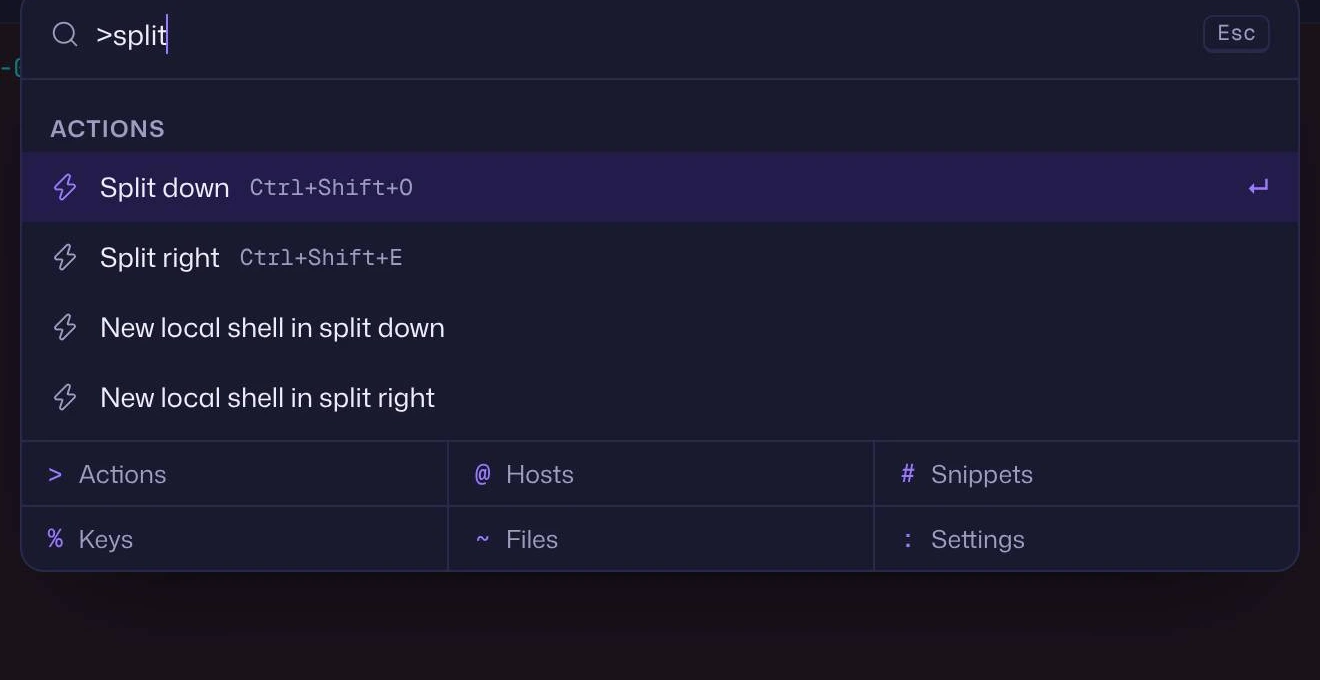
Actions | >split |
@ |
Hosts, connections, Code projects, groups, layouts and tunnels | @db |
# |
Snippets | #restart |
% |
Keys and identities | %ci |
~ |
Files on the focused server | ~nginx.conf |
: |
Settings and themes | :accent |
Open sessions only appear when you haven’t typed a prefix.
Say what to do with a verb
Section titled “Say what to do with a verb”Start with a word, then a space, and the host you pick does that instead of opening in a new tab:
| Verb | What happens | Example |
|---|---|---|
connect or ssh |
Connect in a new tab | ssh web-01 |
split |
Connect in a split to the right | split db-primary |
edit |
Open the host editor | edit redis |
theme |
Show only terminal themes | theme nord |
The verb shows as a label at the start of the search box. A verb only counts once you type the space after it, so connecting is still a plain search.
Do more with a result
Section titled “Do more with a result”Many results have more than one action. Press Tab (or → at the end of what you’ve typed) to see them, choose one with Enter, and press ←, Escape or Back to return to the list.
| Result | Enter |
Tab offers |
|---|---|---|
| A host | Connect in a new tab | Connect in a new tab, Connect in split right, Connect in split down, Copy address, Copy SSH command, Edit host, Open in Code… |
| An address you connected to before | Connect again | Connect in split right, Connect in split down, Copy SSH command, Save as a host |
| A group | Edit it | “Connect to all 4 hosts” (each in its own tab), New host in this group, Edit group |
| A connection | Open it in a new tab | Open in a new tab, Open in split right, Open in split down, Go to Connections |
| A layout | Open it | Rename, Duplicate, Delete |
| An open session | Go to that pane | Reconnect (or Restart shell for a local shell), Rename pane, Close pane |
| A key | Copy its public key | Show in Keys |
| An identity | Edit it | |
| A tunnel | Start or stop it | Copy local address, Go to Tunnels |
| A snippet | Run it in the focused pane | Insert, Run on…, Edit, Copy |
Copy SSH command gives you a command you can paste into any terminal, such as ssh -p 2222 [email protected].
Connect to an address you haven’t saved
Section titled “Connect to an address you haven’t saved”Type an address such as [email protected], 10.0.4.12:2222 or localhost. The first result is “Connect to” that address; the second saves it as a host first. The rules for what counts as an address are on Your first connection.
Open something in Code
Section titled “Open something in Code”The Code group has Open folder in Code…, which asks for a folder on this computer, and each of your recent Vaulterm Code projects, listed with where it is (“This computer”, or the server’s name and folder). Enter on a project opens it in a Code window. A host’s Tab list has Open in Code… too, to browse that server’s folders.
Run a snippet
Section titled “Run a snippet”Type # and part of a snippet’s name. Enter runs it in the pane you were typing in, asking for any variables first. Tab offers Insert (type it without pressing Enter), Run on… (pick hosts), Edit and Copy.
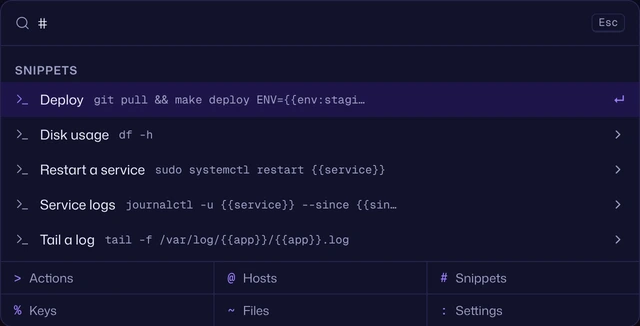
If you have no snippets yet, the list says “No snippets yet. Add one on the Snippets page.” All the ways to run a snippet are on Snippets.
Find files on a server
Section titled “Find files on a server”Type ~ while an SSH pane is focused. The Command Center lists the files and folders in that server’s current folder in the Files tray (your home folder if you haven’t browsed anywhere yet), and the folders you visited recently on that host.
- A file:
Enterdownloads it to your Downloads folder.Taboffers Download, Open in default app, Download to… and Copy path, and Edit in Code when Code can open that server. - A folder:
Enteropens it in the Files tray.Taboffers Open in Files, Open folder in Code when Code can open that server, and Copy path.
If the focused pane isn’t a connected SSH session, the list says “Focus a connected SSH session to find its files.”
Preview a theme or an accent
Section titled “Preview a theme or an accent”Type theme and a space, or : and part of a name. Highlight a theme with the arrow keys or the mouse, and after a moment the whole window shows it. Keep moving and nothing changes: Vaulterm waits until you pause on one.
Enterkeeps the highlighted theme.Escapecloses the Command Center and puts your old theme back.
Accents work the same way: type :accent and move through them. Terminal theme: Match the app follows your app theme and accent.
What counts as recent
Section titled “What counts as recent”The Command Center remembers which results you choose and how often, and ranks them higher next time. Opening it with nothing typed shows up to 8 of them under Recent.
- Something you used today counts fully. After a day it counts 70%, after a week 50%, after a month 25%.
- Only ids are stored (like “host number 12”), never names or addresses. They’re kept in this computer’s preferences, outside the vault, and capped at 300 entries.
- Quick-connect results and open sessions aren’t remembered.
Actions you’ll find with >
Section titled “Actions you’ll find with >”Every workspace command, with its shortcut shown beside it: New tab, Close pane, Rename pane, Split right, Split down, Next tab, Previous tab, Move tab left, Move tab right, focusing each direction, Find in terminal, Broadcast input, Show or hide the host list and Show or hide the inspector.
And these:
| Action | What it does |
|---|---|
| New local shell | A shell on this computer in a new tab. Also New local shell in split right and in split down. |
| New host, New group, New identity, Generate a key | Opens that editor. |
| New connection | Opens the editor for a new connection. |
| Browse files on this host | Opens the Files tray for the focused SSH pane. |
| Save layout…, Save this tab as a layout… | Saves all tabs, or only this one, as a layout. |
| Import hosts and keys from this computer | Starts an import. |
| Scan the network for SSH servers | Opens Scan network. |
| What’s new | Shows the notes for your version. |
| Go to Home, Go to Hosts, Go to Connections, Go to Keys, Go to Settings | Switches page. |
| Lock Vaulterm | Locks the vault straight away. |
| Go to Agents | Opens Agents. |
| “Start Claude Code on this computer” (and Codex, Gemini CLI) | Starts that coding agent in a new local tab. |
Take the tour starts the guided tour.
Settings you can change from here
Section titled “Settings you can change from here”Type : to see them. Choosing one changes it at once:
- App theme: System, App theme: Light, App theme: Dark, and a switch between light and dark.
- Accent: followed by each of the 12 accents. A style, accent, palette or terminal theme that needs Pro shows “Needs Pro” and opens the unlock sheet instead of changing.
- Style: followed by Gradient and Minimal (the style v2 calls Default), and with Pro, Glass, Retro and Soft. In v2, Retro palette: followed by each of Retro’s five palettes.
- Logo: followed by each face, such as “Logo: Squint”. The title bar previews the face while it’s highlighted.
- Terminal theme: followed by each theme, including your own.
- Terminal font size: larger, Terminal font size: smaller (between 10 and 24) and Terminal font size: default (13).
- Increase contrast, Paste on right-click and Restore previous session, which say whether they’re on or off.
- Change your name, Copy version and build, Open Settings.
- “Smart panes: On” or “Off”, which switches smart panes.
- Sounds, on or off.
Good to know
Section titled “Good to know”- The Command Center keeps the keyboard while it’s open.
Tabnever moves focus out of the search box. - Clicking a result works the same as
Enter. - An item that disappears while the list is open (a pane closes, a host is deleted) is dropped from the list without losing your place.