Install themes and add-ons in Code
The store installs VS Code themes, icon themes, languages and snippets, and Vaulterm’s own add-ons. It does not run VS Code extension code. For what it is, see Extensions. To use a theme you installed, see Themes.
Open Extensions
Section titled “Open Extensions”Press Extensions, the puzzle icon in Code’s side bar. The top of the view lists what is Installed. Below it are two tabs, Vaulterm and VS Code (Open VSX).
Search and categories
Section titled “Search and categories”Type in Search extensions, or choose a category chip.
- On Vaulterm: Themes, Icon themes, Languages, Snippets, Tools and Agents.
- On VS Code (Open VSX): Themes, Programming Languages, Snippets, Linters and Formatters.
Sort by Most installed
Section titled “Sort by Most installed”Choose Sort by, then Most installed, Newest, Best rated or Name. Open VSX has no sort by name. The Open VSX tab opens on Popular.
Install, Disable and Uninstall
Section titled “Install, Disable and Uninstall”- Press an extension’s name to read its page.
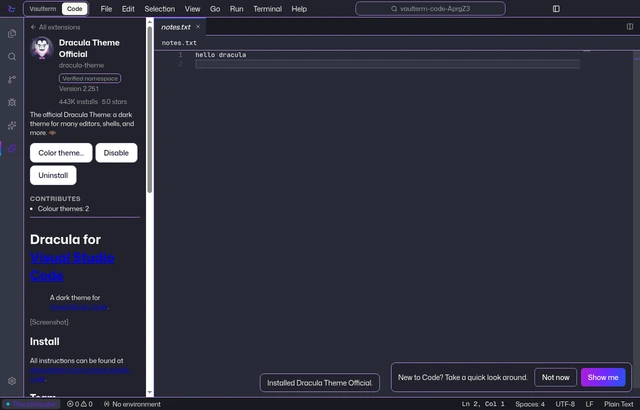
- Press Install. A theme can then be tried with Color theme….
- Disable switches it off without removing it. Enable switches it back on.
- Uninstall removes its files and what it adds. Settings you changed stay.
An item with a newer version shows Update. The toggle beside an installed extension switches it off in this project only.
Installing from Open VSX asks you to confirm when the publisher isn’t verified.
Install from a VSIX file
Section titled “Install from a VSIX file”Press Install from VSIX file… and choose a .vsix. The extension’s page says “From a file”.
Vaulterm uses only what is declarative in it: themes, icon themes, languages and snippets. When a file also holds code, such as commands, views or a debugger, the extension is marked Partly supported, with a line like “Partly supported: … won’t run in Vaulterm”. The code is not run. Install stays on offer, for the parts that work.
Not every VS Code extension is on Open VSX, and some, such as Microsoft’s own, are mostly absent. Vaulterm doesn’t use the Microsoft Marketplace.
Official add-ons
Section titled “Official add-ons”Official add-ons are made and signed by WarPulse, and wear a blue check and the label Official. Unlike an Open VSX item, an Official add-on can run code, in a sandbox.
- Installing one asks “Let the add-on run code?” and lists the permissions it asks for, such as reading or writing project files, reaching a network host, running programs or using terminals. Press Install and allow to go on.
- There is no permission for your vault.
- Only Official add-ons can run code for now. An add-on that isn’t signed by WarPulse is refused with “Only Official add-ons for now”.
- The list may be empty. Until there are some, the Vaulterm tab says “Official add-ons are coming”.
The Verified namespace label and the blue check
Section titled “The Verified namespace label and the blue check”The blue check means Official: WarPulse made the add-on and signed it, and Vaulterm checks the signature each time it loads. The grey Verified namespace label on an Open VSX item means only that Open VSX says the publisher owns the namespace. It is not an audit of the extension. An item with neither shows Unverified.
Remove an add-on, and the revocation list
Section titled “Remove an add-on, and the revocation list”Uninstall removes an add-on at any time.
Vaulterm can also withdraw an extension. It checks a list of withdrawn extensions when Code opens and about every ten minutes while it stays open. A withdrawn version is switched off, and Vaulterm says so: “Vaulterm withdrew” the extension. It shows Withdrawn by Vaulterm in the list and can’t be switched back on. Update to a newer version if there is one, or uninstall it.
To use the store, Vaulterm contacts api.vaulterm.com. See Privacy.