Settings reference
Open Settings in the left rail, or Open Settings in the Command Center. In v2, the default look since 0.1.2, Settings shows one category at a time: Account, License, Sync, Appearance, Terminal, Shortcuts, Code, Privacy and security and About, listed down the side. Account holds the Profile and Account sections below, Appearance holds Appearance, Terminal theme and Sound, Terminal holds Terminal, Smart panes and Workspace, Privacy and security holds Security and Privacy, and About holds Help and About. In v1 · Original, the sections are listed down the side instead, and clicking one jumps to it.
“These settings apply to this device. Hosts, keys and identities are stored in your vault.” Everything on this page is saved on this computer only, outside the vault, except Code’s Environments and trusted folders, which are kept in the vault. Changes apply as soon as you make them. There’s no Save button, except in an environment’s sheet.
Profile
Section titled “Profile”“Used for your greeting on Home. Stored only on this device.”
| Setting | What it does | Default |
|---|---|---|
| Name | The name in Home’s greeting (“Good morning, Sam”). Up to 40 characters. Left empty, the greeting has no name. | Empty |
Appearance
Section titled “Appearance”“Theme, accent colour, style and logo for the app.”
| Setting | What it does | Default |
|---|---|---|
| Look | v2 · New or v1 · Original. See below. | v2 · New |
| Style | Default draws the accent as a gradient, with glows (v1 · Original calls it Gradient). Minimal uses it as plain solid colours on a quiet background. | Default |
| Accent | One of 12 colours for buttons, focus rings and highlights. Aurora, Ocean and Graphite come with every plan; the others show a lock and need Pro. | Aurora |
| Accent fill | v2 only. Gradient blends the accent with a second colour. Solid keeps it flat. | Gradient |
| Appearance | v2 only; v1 · Original calls it App theme. System follows your computer’s light or dark setting. Light and Dark stay put. | System |
| Interface font | v2 only. The typeface for Vaulterm’s own text: Mona Sans, Inter, Nunito or System font. Each card shows its name in that face. Retro uses its own font. | Mona Sans |
| Logo | The face on the Vaulterm logo in the title bar: Wink, Smile, Happy, Side-eye, Squint or Sad. | Wink |
| Increase contrast | Stronger borders and brighter text. | Off |
| Zoom (Beta) | Zooms every Vaulterm window, from 50% to 300%. Zoom out and Zoom in step it, and Reset goes back to 100%. In the Beta channel only. Remembered on this computer. | 100% |
| Slide panels in and out | Off, panels and dialogs fade in and out instead of sliding. | On |
| Play the intro when Vaulterm opens | The short intro each time Vaulterm opens. See The intro. | On |
Look is where you choose between v2 · New (thin hairline edges, room to breathe and a new typeface) and v1 · Original. A new install starts on v2, and updating to 0.1.2 moves you to v2 and the Aurora sound once. The first time you unlock after that, Vaulterm asks whether to keep v2 or go back to v1 · Original, and offers the sound pack you had before, by name. Skip it and nothing is lost: Look is here, and Sound pack is in Sound, whenever you want to switch. Your accent, theme and style carry over.
In v2 the choices come in this order: Look, Style, Accent, Accent fill, Appearance and Interface font, then Logo, Increase contrast and the two boxes after it. In v1 · Original they come as App theme, Accent and Style, then Logo, the boxes, and Look last.
The Command Center has the same choices, such as “Style: Minimal” and “Logo: Squint”, and previews each one while it’s highlighted. Its “App theme” rows are the Appearance choice, and it still calls the default style “Style: Gradient” in both looks.
In v1 · Original, with Gradient chosen, a dial under Style turns the direction of the accent’s gradient. v2 has no dial. See Turn the accent gradient.
Each style is a card with a small picture of it. With Pro, Style has three more:
- Glass: see-through panels with a stronger blur over the accent’s glow.
- Retro: a phosphor-terminal look, with the whole app in the mono font, square corners and faint scanlines.
- Soft: rounder corners, more room, and soft shadows, with the accent as pale tints.
Without Pro they show a lock, and choosing one offers Pro. If Pro ends, Vaulterm shows Default (Gradient in v1 · Original) until it comes back, and keeps your choice. With Increase contrast on, Glass’s panels turn solid and Retro’s scanlines go.
In v2, choosing Retro adds a Retro palette row: Classic, the phosphor look above, and four CRT looks, Matrix, Amber, Synthwave and Ice. All five need Pro. A CRT palette is always dark: its row says “Matrix is always dark.”, and the window stays dark whatever Appearance is set to. The Command Center has them as “Retro palette: Matrix” and so on.
More on Themes and accents.
Terminal theme
Section titled “Terminal theme”The colours inside every terminal, as cards you can hover to preview. Show themes filters them: All, Dark, Light. Default: Match the app, which is Vaulterm Ink or Dusk in v2 and Vaulterm Dark or Light in v1 · Original. See Themes.
A host or group can set its own theme, which wins over this one. See A theme per host or group.
Terminal
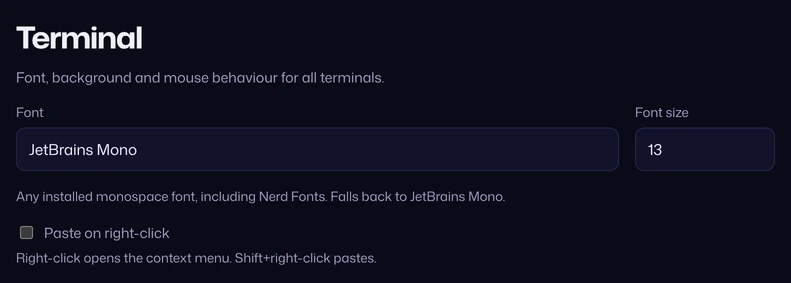
Section titled “Terminal”“Font, background and mouse behaviour for all terminals.”
| Setting | What it does | Default |
|---|---|---|
| Font | The font name, as your system knows it, such as Fira Code or CaskaydiaCove Nerd Font. “Any installed monospace font, including Nerd Fonts. Falls back to JetBrains Mono.” Letters, digits, spaces, ., _ and - only, up to 100 characters. |
JetBrains Mono (built in) |
| Font size | Terminal text size, from 10 to 24. | 13 |
| Background opacity | How strongly each terminal window takes its theme’s background, from 0 to 100% in steps of 5. Vaulterm goes darker or lighter by itself when text would be hard to read. | 60% |
| Paste on right-click | Right-click in a terminal pastes, as in PuTTY, and Shift+right-click opens the menu. Off, right-click opens the menu and Shift+right-click pastes. | Off |
The Command Center has Terminal font size: larger, Terminal font size: smaller and Terminal font size: default for changing the size without opening Settings.
Smart panes
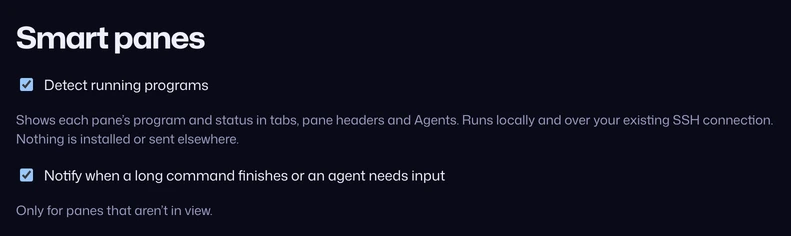
Section titled “Smart panes”| Setting | What it does | Default |
|---|---|---|
| Detect running programs | Tabs and pane headers name the program and its state, and Agents lists the coding agents. “Runs locally and over your existing SSH connection. Nothing is installed or sent elsewhere.” | On |
| Notify when a long command finishes or an agent needs input | Desktop notifications for panes that aren’t in view. Needs Pro, and can only be changed while Detect running programs is on. | On |
See Smart panes.
“The editor, files and terminals in Code windows.” Code windows pick up a change as soon as you make it.
Vaulterm Code is part of Vaulterm. Open it with Code at the top left of the app.
The settings in this table are for Vaulterm Code, and they’re saved on this computer like the rest of this page. Environments and trusted folders, further down, are kept in the vault.
| Setting | What it does | Default |
|---|---|---|
| Keymap | VS Code or Vim. Vim works in editors only: the panel’s terminals keep their own keys. In Vim, :w, :q, :e and :sp are Code’s Save, Close, Go to file and Split editor. |
VS Code |
| Relative line numbers | Counts line numbers away from the cursor’s line. | Off |
| Editor font | A font name, with the same character limits as the terminal’s Font: letters, digits, spaces, ., _ and -, up to 100 characters. Blank uses the terminal’s font. |
Blank |
| Editor text size | From 10 to 24. Blank uses the terminal’s size. | Blank |
| Tab size | From 1 to 8. | 4 |
| Rulers | Column numbers from 1 to 500, separated by commas or spaces, such as 80, 120. Up to 5. |
None |
| Indent with spaces | For new files. A file keeps the indentation it has. | On |
| Word wrap | Wraps long lines in the editor. | Off |
| Show the minimap | Shows the minimap beside the editor. | On |
| Show whitespace | Never, In the selection, Except single spaces or Always. | In the selection |
| Auto save | Off, After a second or When the window loses focus. | Off |
| Trim trailing whitespace on save | Removes whitespace at the ends of lines when a file is saved. | Off |
| End files with a newline on save | Adds a final newline when a file is saved. | Off |
| Format on save | Formats with the file’s language server, when it can format. Auto-save doesn’t format. | Off |
| Always load remote images in Markdown | Off, Markdown’s preview asks first: loading an image from the web tells its server your IP address. | Off |
| Terminal shell | The shell for a project’s first terminal: Ask the first time, The account’s login shell, Bash, Zsh, fish, PowerShell, Windows PowerShell, Command Prompt, Git Bash, WSL or Nushell. It asks when that shell isn’t there. | Ask the first time |
| Hidden in the Explorer | Names and patterns the Explorer hides, one per line, like .git or *.log. Up to 100, each up to 256 characters. Saved when you leave the field. |
.git and .DS_Store |
| Skipped by search | Names and patterns that search skips, one per line, as well as what .gitignore skips. Up to 100, each up to 256 characters. Saved when you leave the field. |
node_modules, dist, build, coverage, .next, target and *.min.js |
A project’s .editorconfig wins over Indent with spaces, Tab size, Trim trailing whitespace on save and End files with a newline on save.
Claude
Section titled “Claude”Settings for Claude in Vaulterm Code. See Use Claude in Vaulterm Code.
| Setting | What it does | Default |
|---|---|---|
| API key | Shows “API key: set” or “API key: not set”. Add key (or Change) opens Anthropic API key, and Save key stores it in the vault. Remove deletes it from the vault. Create a key at console.anthropic.com opens Anthropic’s page for making one. | Not set |
| Default model | The model new projects start with: Sonnet, Opus or Haiku. Each project remembers the one you pick in its panel. | Sonnet |
| Claude: MCP servers | The MCP servers Claude can use, up to 40. Add MCP server, then a Name, a Type (stdio, http or sse), a Command or URL, an optional Environment from the vault, and All projects or one project. They run on this computer only. |
None |
Environments
Section titled “Environments”Variables from the vault for a project’s terminals, tasks and debug sessions, on this computer or a server. Nothing is written to a file.
Each environment is listed with its number of variables, Agents get these too when that’s on, and “Used by” the number of projects that use it. Edit opens it. With none yet, the list says so, and you can add one here or move a project’s .env into the vault from its Code window.
Add environment needs Pro. Without it, a lock stands in its place.
The sheet has a Name, then a row for each variable with its name, its value and a Secret box. Add variable adds a row, up to 200. A variable’s name uses letters, digits and _, and doesn’t start with a digit. Names starting with _vaulterm_ are Vaulterm’s own. A secret’s value is never shown again once saved, here or anywhere: Replace sets a new one. Agents get these too is off until you turn it on: off, coding agents started in a project get none of the variables. Delete asks first, and says which projects use the environment: they start without it.
Secret values of 6 characters or more show as •••••• in Code's output. Code’s output means what terminals, tasks, the debug console and agents print. Masking stops a secret being shown by accident. It isn't a barrier: a program that changes a value before printing it isn't caught. Only values of 6 characters or more are masked. On a server, the values are in your programs' environment, which you and root can read. Vaulterm warns you as you type a secret shorter than 6 characters.
See Environments for moving a .env in and attaching an environment to a project.
Language servers
Section titled “Language servers”With Pro, Vaulterm starts the server for a file’s language where the project is, once you trust its folder. The list shows the 17 Vaulterm knows, each with its languages. Add your own for any language, or to replace one of these: choose a Language, give the Command that starts it, such as pylsp --stdio, choose where it Runs on, This computer or Servers, and press Add. A command with an unclosed quote is refused. You can add up to 50, and Remove takes one away.
Trusted folders
Section titled “Trusted folders”Language servers can run code from these folders. Trusting a folder is kept with its project in the vault, and a folder on a server is trusted on your other devices too. Each is listed with where it is: this computer, the server’s name, or a number of hosts. Remove stops trusting a folder straight away, without asking.
With none yet, the list says so: turning language servers on in a Code window adds its folder here.
Shortcuts
Section titled “Shortcuts”Every workspace shortcut, with a button to change each one, Reset for each, and Reset all. See Keyboard shortcuts.
Workspace
Section titled “Workspace”| Setting | What it does | Default |
|---|---|---|
| Restore previous session | “Saves your tabs and splits to the vault and offers to reopen them on Home. Nothing reconnects until you choose Resume. Turning this off clears the saved session.” | On |
See Pick up where you left off.
“Audio cues for key events. Sounds only play while Vaulterm is in focus.”
| Setting | What it does | Default |
|---|---|---|
| Play sounds | Turns every sound on or off. | On |
| Volume | How loud. | 60% |
| Sound pack | Changes every sound at once. Choose one of twelve: Aurora (Vaulterm’s own sound, a crystal pluck that blooms), Halo (breathy and gentle), Keystone (a padded click into place under a clear tone), Marimba (soft wooden mallets), Felt (a felted piano, close and quiet), Crystal (clear glass bells with a little air), Drift (soft synth plucks with a short echo), Classic (clean, rising tones, Vaulterm’s first sound), Glass (bright chimes and bells), Soft (plucked and hushed, for quiet rooms), Arcade (gentle square-wave blips, like an old console) or Deep (the same sounds an octave lower). | Aurora |
Below those, each kind of sound has its own checkbox, and a button to play it:
- Connected
- Vault unlocked
- Snippet executed
- Transfer complete
- Tunnel started
- Copied to clipboard
- Setup and tour steps
- Error
- Confirmation prompt
- Intro jingle
The rules:
- Only one sound plays at a time.
- Sounds only play while Vaulterm’s window has focus. A long transfer finishing while you’re in another app is the exception, so you know it’s done.
- A sound never plays over the terminal’s own bell.
- Sounds in the Command Center turns them on or off without opening Settings.
Security
Section titled “Security”“Vaulterm locks your vault so nobody else at this computer can open it. Unlocking takes your master password.”
| Setting | Default | What it does |
|---|---|---|
| Lock Vaulterm after | 15 minutes | How long Vaulterm waits without use before it locks: 1, 5, 15 or 30 minutes, 1 hour, 4 hours, or Never. Never asks first. |
| Lock when this computer sleeps or its screen locks | On | Turning it off asks first. |
Lock now locks straight away. See Auto-lock.
Privacy
Section titled “Privacy”“Usage stats (commands run, time connected, sessions, hosts and streaks) are stored on this device and never include what you type.”
Count my usage on this computer turns the counting on. On a new install it starts off; an install that was already counting keeps counting.
Reset stats sets them all back to zero, after asking: “Reset your stats?” with “Streaks and badges on this computer start again from zero.” Press Reset to go ahead. See Your Vaulterm.
“A quick walkthrough of the main features.” Take the tour starts it. See Take the tour.
License
Section titled “License”Your plan, with what your key covers, its dates and the computers using it. Enter license key adds a key, and Buy Pro opens vaulterm.com to buy one. Once a key is in, Use another key, Manage on vaulterm.com and Deactivate this computer take its place. Deactivating asks first: “Paid features lock on this computer and its seat is freed. Your data isn’t affected, and you can reactivate with your key at any time.” See Pricing.
The top of the section shows the Vaulterm wordmark, Version and the build number, with a link to What’s New for your version. Earlier releases lists the others, each opening its own What’s New.
| Setting | What it does | Default |
|---|---|---|
| Check now | Checks for an update straight away. | |
| Channel | Stable, or Beta for each new update first. Beta is where Vaulterm Code’s Claude, extension store and app zoom are tested before Stable. From 0.2 this section is named Updates. “Stable gets the tested builds of the beta. Beta gets each new update first, and Stable’s too.” | Stable |
| Download updates automatically | Downloads updates as soon as they’re found. Off, and Vaulterm tells you one is available and waits for you to press Download. | On |
The line under Updates says where things stand, and Restart to update appears when an update is ready. What each message means is on Install Vaulterm.
At the bottom, beside “A product of WarPulse LLC”, Terms of Service and Privacy Policy open the Terms and the Privacy Policy on vaulterm.com in your browser.
Good to know
Section titled “Good to know”- Settings aren’t encrypted, since they hold nothing secret. Your name is the most personal thing here.
- Settings are per computer. Using Vaulterm on two computers means setting each up.
- To copy the version and build for a bug report, use Copy version and build in the Command Center.