Smart panes
Vaulterm watches what each terminal says and which program is in front, and shows it: the program’s name and icon, whether it’s working, idle, waiting for you or finished, the folder it’s in, and a button for any local web address it prints. It works for local shells and for SSH sessions, with nothing to install.
What a pane shows
Section titled “What a pane shows”Start npm run dev in a pane and its header changes from the host’s name alone to something like “npm run dev · Running · …/app/web”, with a server icon. The tab shows the same program and state.
| State | Means |
|---|---|
| Running | A program is working. |
| Idle | The shell is at its prompt, or the program is waiting quietly. |
| Needs you | A coding agent finished and is waiting for you, or a program rang the terminal bell. The tab gets a pink badge. |
| Ended | The session is over, with its exit code when known. |
Programs Vaulterm names include:
| Kind | Examples |
|---|---|
| Coding agents | Claude Code, Codex, Gemini CLI, Aider, OpenCode, Cursor Agent |
| Editors | vim, nvim, nano, emacs, helix, micro |
| Dev servers and builds | npm run dev, pnpm start, cargo build, go test, make |
| Containers | docker compose up, docker, kubectl, helm |
| Monitors and logs | htop, btop, top, k9s, tail -f, less, journalctl |
| Databases | psql, mysql, redis-cli, sqlite3, mongosh |
| Other | python scripts and python -m …, git, ssh to another host, tmux |
Anything else shows by its command name. sudo, npx, env and time in front of a command are looked past, so sudo -E npm run dev shows as npm run dev.
A program that reports progress (some installers and build tools do) shows a progress bar in the pane’s header.
Where the information comes from
Section titled “Where the information comes from”Vaulterm reads only what the terminal already tells it, and never sends anything anywhere:
- Local shells: the program in the terminal’s foreground, as your computer reports it.
- SSH sessions to Linux servers that accept
LC_*variables: the same, read over the SSH connection you already have. Vaulterm marks your shell with a variable,LC_VAULTERM_PANE, then opens a second channel on that connection and runs a smallshscript there that finds the marked shell and reads, once a second, which program is in front of it. It only reads; nothing is installed or written on the server, and it ends with the session. - Any terminal: window titles programs set, the folder the shell reports, and the standard marks shells and programs print for prompts, finished commands, progress and notifications.
Debian, Ubuntu and Raspberry Pi OS servers accept LC_* variables as they come. Many others, Arch and Alpine among them, drop them unless the SSH server is set to allow them: see A tab doesn’t name the program on a server. There, and on servers that aren’t Linux, Vaulterm falls back to titles and marks, which covers editors, monitors and the coding agents, but not every command.
Shell integration on a host
Section titled “Shell integration on a host”For the command’s exact text, its exit code and the folder you’re in, turn on shell integration for a host or group:
- Open the host (or group) and More options.
- Set Shell integration to On.
- Press Save.
When a terminal to that host connects, Vaulterm types one line into the shell before anything else (and before any startup snippet). In bash and zsh it adds a prompt hook that reports each command, its exit code and the folder; other shells ignore it. View the command in the editor shows the line exactly as it’s sent.
The line:
- starts with a space, so shells set to leave such lines out of history don’t record it
- lasts for that session only; nothing is written on the server
- is sent again after a reconnect, since that’s a new shell
Like the other host settings, it’s inherited from the group, and Default means “from group, or off”.
Open a printed web address
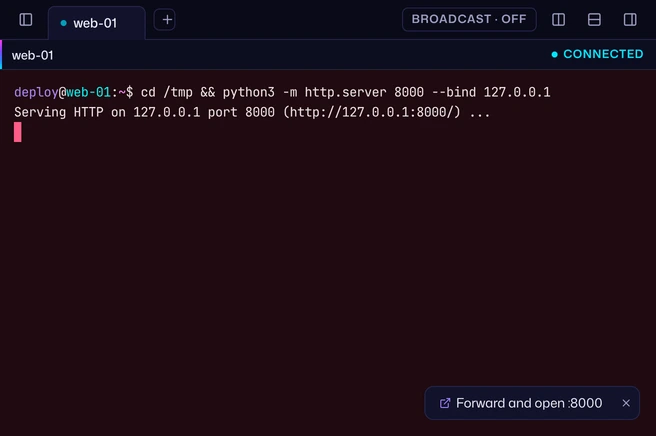
Section titled “Open a printed web address”When a program prints a local address such as http://localhost:5173, a button appears in the pane’s corner. Up to 3 addresses show at once, newest first. The Dismiss button hides them until an address is printed again, and they go away by themselves when the program that printed them stops.
- In a local shell: “Open :5173” opens
http://localhost:5173/in your browser. - In an SSH session to a saved host: “Forward and open :5173”. Vaulterm makes a tunnel called “Port 5173” on that host, from a free port on this computer to the server’s port 5173, starts it, and opens it in your browser once it’s listening. If you already have a tunnel that forwards that port, Vaulterm uses it instead of making another. If the tunnel doesn’t start within 20 seconds, Vaulterm says “The tunnel took too long to start”.
- In a quick-connect session: the button explains “Save the host to forward its ports”. Tunnels belong to saved hosts.
The tunnel stays on the Tunnels page afterwards, so next time it’s one click there too.
Notifications
Section titled “Notifications”When a pane you aren’t looking at has news, Vaulterm tells you with a desktop notification:
- a coding agent needs you: “Claude Code needs you”, with where it is, and its own message if it sent one
- a command that ran for 10 seconds or more finishes: “npm run build finished”, or “failed” with its exit code
“Not looking at” means the pane is in another tab, you’re on another page of Vaulterm, or Vaulterm’s window isn’t in front. Click the notification to go to the pane. At most 6 notifications a minute come from one window, so a noisy program can’t flood your desktop.
Turn smart panes off
Section titled “Turn smart panes off”Open Settings → Smart panes:
| Setting | What it does | Default |
|---|---|---|
| Detect running programs | Everything on this page, and Agents. | On |
| Notify when a long command finishes or an agent needs input | The desktop notifications. | On |
Or type smart in the Command Center and choose “Smart panes: On” to switch it off (it then says Off).
Good to know
Section titled “Good to know”- Titles and messages from programs are cleaned before Vaulterm shows them: control characters are removed and long text is cut short, so a program can’t put anything odd in your tab.
- Nothing is typed into your terminals, except the shell-integration line on hosts where you turn it on.
- The guided tour has a stop for smart panes. See Take the tour.