Keyboard shortcuts
Vaulterm’s shortcuts work everywhere in the window, including inside terminals. Every one can be changed in Settings → Shortcuts.
The defaults
Section titled “The defaults”On a Mac, the shortcuts use ⌘, the way Mac apps do. Settings shows them the Mac way, with ⌃ for Control, ⌥ for Option, ⇧ for Shift and ⌘ for Command.
| Command | Windows and Linux | Mac |
|---|---|---|
| Command Center | Ctrl+Shift+` |
⌘K |
| New tab | Ctrl+Shift+T |
⌘T |
| Close pane | Ctrl+Shift+W |
⌘W |
| Rename pane | Ctrl+Shift+R |
⇧⌘R |
| Split right | Ctrl+Shift+E |
⌘D |
| Split down | Ctrl+Shift+O |
⇧⌘D |
| Next tab | Ctrl+Tab |
⌃Tab |
| Previous tab | Ctrl+Shift+Tab |
⌃⇧Tab |
| Move tab left | Ctrl+Shift+PageUp |
⇧⌘← |
| Move tab right | Ctrl+Shift+PageDown |
⇧⌘→ |
| Focus pane left | Alt+← |
⌥⌘← |
| Focus pane right | Alt+→ |
⌥⌘→ |
| Focus pane above | Alt+↑ |
⌥⌘↑ |
| Focus pane below | Alt+↓ |
⌥⌘↓ |
| Find in terminal | Ctrl+Shift+F |
⌘F |
| Broadcast input | Ctrl+Shift+B |
⇧⌘I |
| Show or hide the host list | Ctrl+Shift+H |
⇧⌘H |
| Show or hide the inspector | Ctrl+Shift+I |
⌥⌘I |
| Bigger text in this pane | Ctrl+= |
⌘= |
| Smaller text in this pane | Ctrl+- |
⌘- |
| Reset this pane’s text size | Ctrl+0 |
⌘0 |
The ` in the Command Center’s shortcut on Windows and Linux is the key left of 1, whatever it types on your keyboard.
On a Mac, Settings notes under Command Center: “macOS reserves ⌃Space for switching input sources.” Pick something else if you change it.
Why they use Shift or Alt on Windows and Linux
Section titled “Why they use Shift or Alt on Windows and Linux”Shells and terminal programs use plain Ctrl+letter for themselves: Ctrl+C stops a program, Ctrl+R searches history, Ctrl+W deletes a word, Ctrl+D logs out. Vaulterm sees shortcuts before the terminal does, so a shortcut on Ctrl+W would stop you ever deleting a word in bash. Adding Shift keeps those keys for the shell. The text-size keys are the exception: Ctrl+=, Ctrl+- and Ctrl+0 are the zoom keys most terminals use, and they only change the focused pane.
On a Mac, the shell’s keys are on ⌃ (Control), and the shortcuts are on ⌘, which the shell doesn’t use. So ⌘W closes a pane and ⌃W still deletes a word.
Beta: zoom, Source Control and Claude
Section titled “Beta: zoom, Source Control and Claude”These keys are in the Beta channel of Vaulterm Code, and are not in the table above. They can’t be changed in Settings → Shortcuts.
| Where | Windows and Linux | Mac | Does |
|---|---|---|---|
| Any window (Beta) | Ctrl with +, - or 0 |
⌘ with +, - or 0 |
Zoom the whole app in, out and back to 100% |
| Any window (Beta) | Ctrl and the mouse wheel |
⌘ and the mouse wheel |
Zoom the whole app |
| Source Control, Changes (Beta) | s |
s |
Stage the selected file |
| Source Control, Changes (Beta) | u |
u |
Unstage the selected file |
| Source Control, Changes (Beta) | Enter |
Enter |
Open the file’s diff |
| Claude panel (Beta, Pro) | Enter, Shift+Enter |
Enter, Shift+Enter |
Send the message, or add a new line |
| Claude panel (Beta, Pro) | Up in an empty message |
Up in an empty message |
Bring back your last message |
| Claude panel (Beta, Pro) | Enter, Escape |
Enter, Escape |
Allow once, or deny, when Claude is asking |
Zoom is remembered, and applies to every Vaulterm window. It is also in Settings → Appearance. See Open a project in Vaulterm Code and Use Claude in Vaulterm Code.
Change a shortcut
Section titled “Change a shortcut”- Open Settings → Shortcuts.
- Press Change beside a command. It reads “Press keys…” while it listens.
- Press the keys you want, for example
Ctrl+Alt+D(⌃⌥Don a Mac).
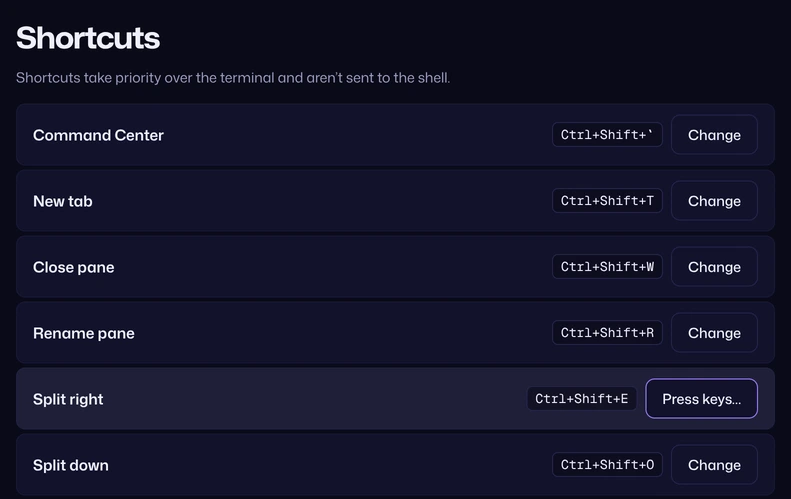
The new shortcut takes effect straight away. Reset beside a command puts its default back; Reset all puts every default back.
The page reminds you: “Shortcuts take priority over the terminal and aren’t sent to the shell.” Press Escape to stop recording without changing anything.
What Vaulterm checks
Section titled “What Vaulterm checks”| You press | Vaulterm says |
|---|---|
A letter or number on its own, or with only Shift |
“Shortcuts must include Ctrl or Alt.” It isn’t saved, so plain typing still reaches the shell. Function keys (F1 to F12) are fine on their own. |
| A shortcut another command already uses | “Ctrl+Shift+E is already used for Split right.” It isn’t saved. Change the other command first. |
Ctrl and a letter |
“Ctrl+K is also a shell control key (like Ctrl+R). It won’t reach the terminal.” It’s saved, with the warning. |
Alt and a letter or number |
A warning that some keyboards type a character with that combination (AltGr on many European layouts), or that the shell uses it (like Alt+B and Alt+F to move by word in bash). It’s saved, with the warning. |
On a Mac:
| You press | Vaulterm says |
|---|---|
A letter or number on its own, or with only ⇧ |
“Shortcuts must include ⌘, ⌃ or ⌥.” It isn’t saved. |
| A shortcut another command already uses | “⌘D is already used for Split right.” It isn’t saved. |
⌃ and a letter |
“⌃K is also a shell control key (like Ctrl+R). It won’t reach the terminal.” It’s saved, with the warning. |
⌥ and a letter or number, without ⌘ or ⌃ |
“⌥B types a character on macOS. That character won’t be available in the terminal.” It’s saved, with the warning. |
Keyboard layouts
Section titled “Keyboard layouts”Shortcuts follow the letter printed on the key. On an AZERTY keyboard, Ctrl+Shift+W is the key marked W, wherever it sits. On a keyboard that doesn’t type Latin letters (Cyrillic, Greek, Hebrew and so on), shortcuts use the key in the QWERTY position instead. So do Mac shortcuts with ⌥, since ⌥ changes the character a key types.
Other keys worth knowing
Section titled “Other keys worth knowing”These aren’t in the shortcuts list, and can’t be changed:
| Where | Key | Does |
|---|---|---|
| Command Center | Tab or → |
More actions for the highlighted result |
| Command Center | ←, Escape |
Back to the list, or close |
| Find bar | Enter, Shift+Enter |
Next and previous match |
| Files tray | F2, Delete, Backspace |
Rename, delete, up one folder |
| A split’s divider | ← → or ↑ ↓ |
Move it by 5% |
| Any dialog | Escape |
Cancel |
Good to know
Section titled “Good to know”- Shortcuts are preferences for this computer. They aren’t in your vault.
- The Command Center shows each workspace command’s shortcut beside it: type
>to see them all. - To copy and paste in a terminal, right-click and choose Copy or Paste. Pasting goes through the terminal like typing does, so it reaches every pane when broadcast is on.