Sync
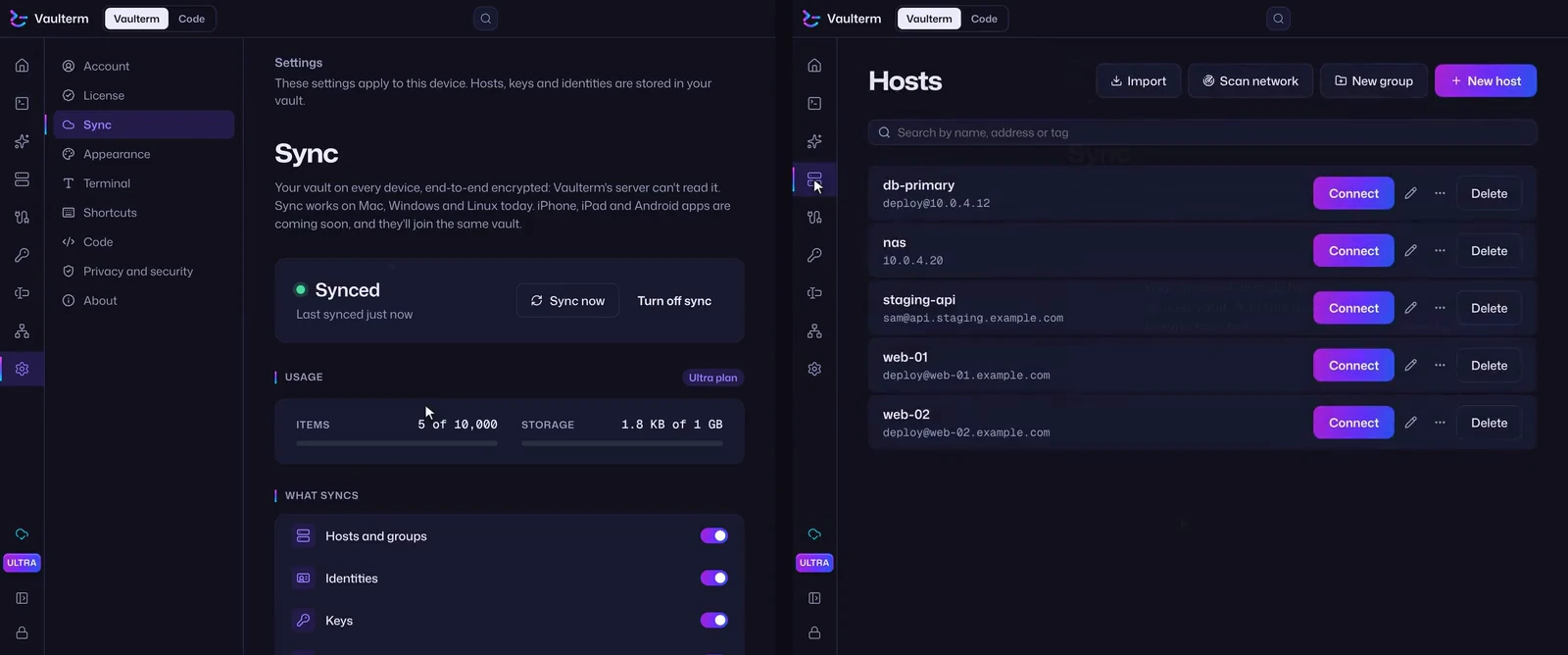
Sync keeps your vault the same on every computer you use: hosts and groups, identities, keys, snippets, tunnels, connections, layouts, known hosts, Code projects and Environments. Everything is encrypted on your computer before it’s sent, so our server holds a copy it can’t read.
Every plan syncs, up to a number of items: Free syncs 5, Pro 250 and Ultra 10,000. It works on Mac, Windows and Linux today. An iPhone app is coming soon, and iPad and Android apps after it. They’ll join the same vault.
Your Vaulterm account
Section titled “Your Vaulterm account”Sync needs a Vaulterm account. Open Settings → Account and press Sign in: vaulterm.com opens in your browser, and Vaulterm comes back signed in. If the browser can’t open Vaulterm, the page shows a code to type in instead.
You sign in with a passkey (Vaulterm recommends it: there’s nothing to remember and it can’t be phished), or with a password and an authenticator app. A password always needs the authenticator’s code too.
Your account password and your vault password are different passwords. The account password signs in to our server; the vault password never leaves your computers.
Signing in also brings your account’s license, so there’s no key to type.
Turn on sync
Section titled “Turn on sync”On the first computer, open Settings → Sync and press Turn on sync. Vaulterm uploads your vault, encrypted, and says “Synced” when it’s done. After that it sends each change a moment after you make it, and fetches changes from your other computers every minute while Vaulterm is in front, and every few minutes when it isn’t.
A synced vault can use up to 1 GB, history included. Settings → Sync shows how much is used, and warns at 80%.
How many items
Section titled “How many items”An item is anything that syncs: a host or a group, an identity, a key, a snippet, a tunnel, a connection, a layout, a known host, a Code project or an environment. Settings → Sync shows how many your synced vault holds, and how many your plan syncs: 5 on Free, 250 on Pro and 10,000 on Ultra.
If a change would take it past your plan’s items, sync pauses: nothing is sent or fetched, and nothing is deleted. Settings → Sync says how many items there are. Delete some, or move to a bigger plan, and sync carries on by itself. After buying, press Check again in Settings → Account so Vaulterm picks up the new license.
A kind turned off under Sync on this device isn’t sent from that computer, so it doesn’t add items there. Items already in the synced vault still count.
Choose what syncs
Section titled “Choose what syncs”Under Sync on this device, each kind has its own switch: Hosts and groups, Identities, Keys, Snippets, Tunnels, Connections, Layouts, Known hosts, Code projects and Environments. Turn off Keys, for example, to keep private keys on one computer.
A kind turned off stays on that computer. It isn’t removed from your other computers or from the cloud copy.
Some things never sync: your connection history, recent items, and your account’s sign-in on this computer.
Add another computer
Section titled “Add another computer”On the new computer, sign in to the same account, open Settings → Sync, press Turn on sync, then Add this device…. There are two ways in.
Approve from another device (the usual way): the new computer shows five words. Your other computer, the next time it syncs, asks whether to let it join and shows its five words. If they’re the same five words, press Approve. If they differ, or you didn’t ask, deny it. The request ends after 10 minutes.
Use the Recovery Key when no other computer is at hand: type the Recovery Key Vaulterm showed when your synced vault was first made.
Before anything changes, the new computer says what happens to what’s already on it:
- If it has items of its own, they’re added to your synced vault. Nothing is replaced.
- From then on, it unlocks with your synced vault’s password, and your Recovery Key is the synced vault’s. Its old password and Recovery Key stop working.
Then type your synced vault’s password and press Join.
The five words come from the new computer’s key for the exchange. If something in between swapped that key, the words would differ, which is why they’re compared before you approve.
The same thing twice
Section titled “The same thing twice”When the new computer had a key that’s already in your synced vault (the same fingerprint), the two become one, and identities that used it move to the synced one.
Hosts with the same address, port and username, and snippets with the same command, may be the same thing saved twice. Settings → Sync lists them under Possible duplicates: Merge keeps the synced one and deletes this computer’s copy; Keep both leaves them.
One vault password everywhere
Section titled “One vault password everywhere”Your synced computers share one vault password. Change it on one, and your other computers take the new password when they next sync: from then on, it’s the one that unlocks them.
When two computers change the same thing
Section titled “When two computers change the same thing”If you edit the same host on two computers before they sync, the newer edit wins, and the other is kept in history. Nothing is lost and nothing asks you to choose. For a day afterwards, the item’s history says “Changed on 2 devices at once” and which edit was kept.
History and Recently deleted
Section titled “History and Recently deleted”Every change is kept for 90 days.
- History… in a host’s or a connection’s menu lists its earlier versions, with the computer and the time. Restore makes one the current version again, as a new change that syncs like any other.
- Recently deleted… in Settings → Sync lists what was deleted in the last 90 days, with Restore.
Your computers
Section titled “Your computers”Settings → Sync lists the computers signed in to your account, with when each last synced. Remove… signs one out and stops it syncing until another of your computers approves it again. What’s already on it stays there: it can’t be erased from afar.
The same list is on vaulterm.com/account.
Turn off sync, or delete the cloud copy
Section titled “Turn off sync, or delete the cloud copy”Turn off sync stops this computer sending and fetching. Its vault stays, and turning sync on again catches up from where it stopped.
Delete the cloud copy… deletes every item and all history on our server, after you type your account’s email. Sync turns off on every computer, and each keeps its own vault.
When a license ends
Section titled “When a license ends”Sync carries on with the plan you’re left with. If your synced vault holds more items than that plan syncs, sync pauses, and every computer keeps its vault. We keep the encrypted copy for 180 days and email you 30 days and 7 days before deleting it. Get back under the limit, or renew, before then and sync picks up where it stopped.
A license bought with another email
Section titled “A license bought with another email”Signing in brings your account’s license. If this computer has a license bought with a different email, and your account has none, Settings → Account asks for that license’s key: typing it while signed in adds the license to your account. If you’ve lost the key, Email me the key sends a new one to the email the license was bought with.
Getting back into your account
Section titled “Getting back into your account”- If you forgot your account password, a code by email and your authenticator’s code (or a backup code) set a new one at vaulterm.com/account/recover.
- If you lost every way to sign in but have your Recovery Key, or a computer that still syncs, choose “Get back in with it” on the same page. After the email’s code, Vaulterm opens and proves the account is yours, from that computer or with the Recovery Key, without sending either. Every way to sign in is then removed and every computer signed out, and you add a new one in your browser. If Vaulterm doesn’t open by itself, paste what the page shows under Settings → Account → Getting your account back?.
- If you lost everything, the Recovery Key too, choose “I’ve lost everything” on that page. We can give you your account back (your licenses, and the right to sync), but not what’s in your synced vault: it’s encrypted with a key only your computers and your Recovery Key hold. If one of your computers still has Vaulterm with your vault on it, you keep everything.
The email alone never gets anyone into your account.
What our server can see
Section titled “What our server can see”Our server can see your account’s email, your passkeys’ public keys or a hash of your account password, and your computers’ names, platforms and when each was last seen. For each item it sees a random id, a version number, whether it’s deleted, its size and when it changed.
It can’t see what kind of item it is, or any names, addresses, usernames, keys or passwords. It never has your vault password, your vault’s key or your Recovery Key.
Three secrets keep it that way:
| Secret | Where it lives | What it protects |
|---|---|---|
| Your account (a passkey, or a password with an authenticator app) | your passkey manager or security key, or your password and authenticator | who you are to our server: the encrypted copy, your computers, your licenses. It can’t read your vault. |
| Your vault’s key | on each computer, locked by your vault password | everything in your vault. It’s never sent anywhere unlocked. |
| Your Recovery Key | written down by you | a second lock on your vault’s key, for when no computer is left. Our server keeps that locked copy, which can’t be guessed open. |