Hosts
A host is a server you’ve saved: its address, how to sign in, and a few preferences. Saved hosts live in your encrypted vault, hostnames included.
Add a host
Section titled “Add a host”- Open Hosts in the left rail and press New host. Or press the + button beside a group (“Add host to Production”) to put it straight in that group.
- Fill in Hostname or IP, for example
web-01.prod.internal. - Give it a Name such as
web-01, pick a Group, and add Tags if you like. - Press Save.
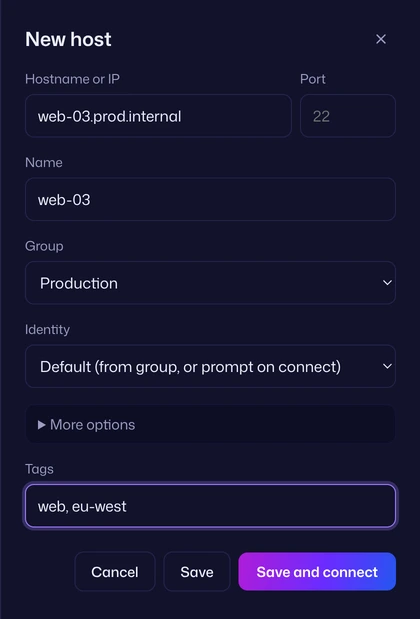
Click the host’s row to connect.
A shorter way: paste [email protected]:2222 into Hostname or IP and move to the next field. Vaulterm splits it into the hostname, the port (2222) and the identity that signs in as deploy. If no identity does yet, it says “No identity signs in as deploy yet.” with a Create one link that opens the identity editor with the username filled in.
Every field
Section titled “Every field”| Field | What it does | If you leave it empty |
|---|---|---|
| Hostname or IP | The server’s DNS name or IP address. IPv6 addresses go in as they are, without brackets. | Required. |
| Port | The SSH port. | The group’s port, or 22. |
| Name | What Vaulterm shows in lists, tabs and the Command Center. | The hostname. |
| Group | Which group the host is in. New group… at the end of the list creates one without leaving the sheet. | No group. |
| Identity | Who to sign in as, and how. See Identities. New identity… creates one. | The group’s identity, or Vaulterm asks when you connect. |
| Tags | Words to find the host by, separated by commas: nginx, eu-west. |
No tags. |
Under More options:
| Field | What it does | If you leave it at Default |
|---|---|---|
| Jump host | Another saved host to connect through first. See Jump hosts. | The group’s, or none. |
| Agent forwarding | Lets the server use your local SSH agent. On, Off, or Default. See Agent forwarding. | The group’s, or off. |
| Shell integration | Sends one line when a terminal connects so the pane can show each command, its exit code and the folder. On, Off, or Default. See Shell integration on a host. | The group’s, or off. |
| Startup snippet | A snippet that runs when a terminal to this host first connects. None turns off a snippet the group sets. | The group’s, or none. |
| Terminal theme | This host’s colours, so you can tell servers apart at a glance. See Themes. | The group’s theme, or your app theme. |
More options opens by itself when any of these is set, so a saved value is never hidden.
Every “Default” follows the host’s group, and that group’s parent, all the way up. How that works is on Groups and inheritance.
Tunnels
Section titled “Tunnels”When you edit a saved host, a Tunnels section lists its tunnels with their routes. Click one to edit it, or press Add tunnel.
What Vaulterm checks when you save
Section titled “What Vaulterm checks when you save”| Message | Fix |
|---|---|
| Enter a hostname or IP address. | Hostname or IP is empty. |
| A hostname can’t contain spaces. | Remove the space. |
| Port must be a number from 1 to 65535. | Fix Port, or clear it for the default. |
| Tags can be at most 50 characters. | Shorten a tag. |
Tags are trimmed, and a tag you typed twice is kept once.
Save, or save and connect
Section titled “Save, or save and connect”A new host from quick connect has two buttons: Save, and Save and connect, which opens it in a new tab straight away. Everywhere else there’s only Save.
Find a host
Section titled “Find a host”The Hosts page has a search field: Search by name, address or tag. It filters as you type, and keeps each match inside its group.
The Command Center finds hosts by more than that: their tags, their group’s name, and the identity they sign in as. Type @ first to search only hosts. See The Command Center.
The Hosts page
Section titled “The Hosts page”Hosts without a group come first, then each group with its hosts, and groups inside groups indented below their parent.
Each host row has:
- the host’s name and address, with the user and port when they aren’t the usual ones
- Connect, which opens it in a new tab (clicking anywhere else on the row does the same)
- an edit button
- Delete
Each group row has buttons to add a host to it and to edit it.
At the top of the page: Import (see Bring your hosts over), Scan network (see Scan network), New group and New host.
Organise hosts and groups
Section titled “Organise hosts and groups”Put them in your own order
Section titled “Put them in your own order”Drag a host or a group by its row. A line shows where it will land, and a label says what will happen: into a group, or before or after another row. Drop it there. Once you’ve moved something within a group, that group keeps your order; Sort A–Z in the group’s menu puts it back in name order. Sort A–Z at the top of the page does the same for everything not in a group.
To move several at once, click one row, then Shift-click another to select everything between them, or Ctrl-click (⌘-click on a Mac) to add rows one at a time. Drag any of the selected rows and they all move. A group can’t go inside itself or one of its own subgroups.
You can also drag hosts from the Hosts page onto a group in the host list beside your terminals.
From the menus
Section titled “From the menus”Each host has a More menu, and a right-click menu, with Connect, Connect in split, Edit, Copy address, Duplicate, Move to… and Delete…. Groups have Add host, Edit, Duplicate, Move to… and, when the group has its own order, Sort A–Z.
- Duplicate makes a copy called “web-01 (copy)” (then “(copy 2)”, and so on) with the same address, group, tags and settings. Tunnels aren’t copied. Duplicating a group copies its settings, not the hosts inside it.
- Move to… opens a list of groups, with No group at the top. Pick one and press Move. It’s the way to do what dragging does with the keyboard or a screen reader.
Delete a host
Section titled “Delete a host”Choose Delete… from the host’s menu. Vaulterm asks first (“Delete web-01?”), with Cancel focused, and says if the host’s tunnels will go with it. Press Delete host to delete it.
A host that another host uses as its jump host can’t be deleted. Vaulterm says “Couldn’t delete bastion. It’s still used by host web-01. Change that first.” Pick a different jump host for web-01, then delete.
Deleting a host removes it from your vault, along with its tunnels. Layouts that used it open with that pane asking where to connect instead. The server itself isn’t touched, and neither is its trusted host key.
Good to know
Section titled “Good to know”- Hostnames are stored encrypted, like everything else in the vault. Someone with your
vault.dbbut not your password can’t see which servers you use. - Saving a host doesn’t connect to it or check that it exists.
- A host’s own settings always win over its group’s. To go back to the group’s value, choose the Default option again.
- To stop trusting a server’s key, open the host and press Forget host key. See Host keys and trust.